
Email checks: stop others sending email as your store
The Email page checks the settings on your domain that decide two things: whether someone else can send email pretending to be your store, and whether your own email can prove it comes from you. It does this on every scan, and shows you how to fix anything that is missing. This is how you stop email spoofing on a Shopify store: fake email that uses your store’s address.
These checks find settings to fix. They do not find or read actual fake emails. Good settings help your email reach the inbox, but no setting can promise inbox placement.
Open the Email page
- In Recon, open Email.
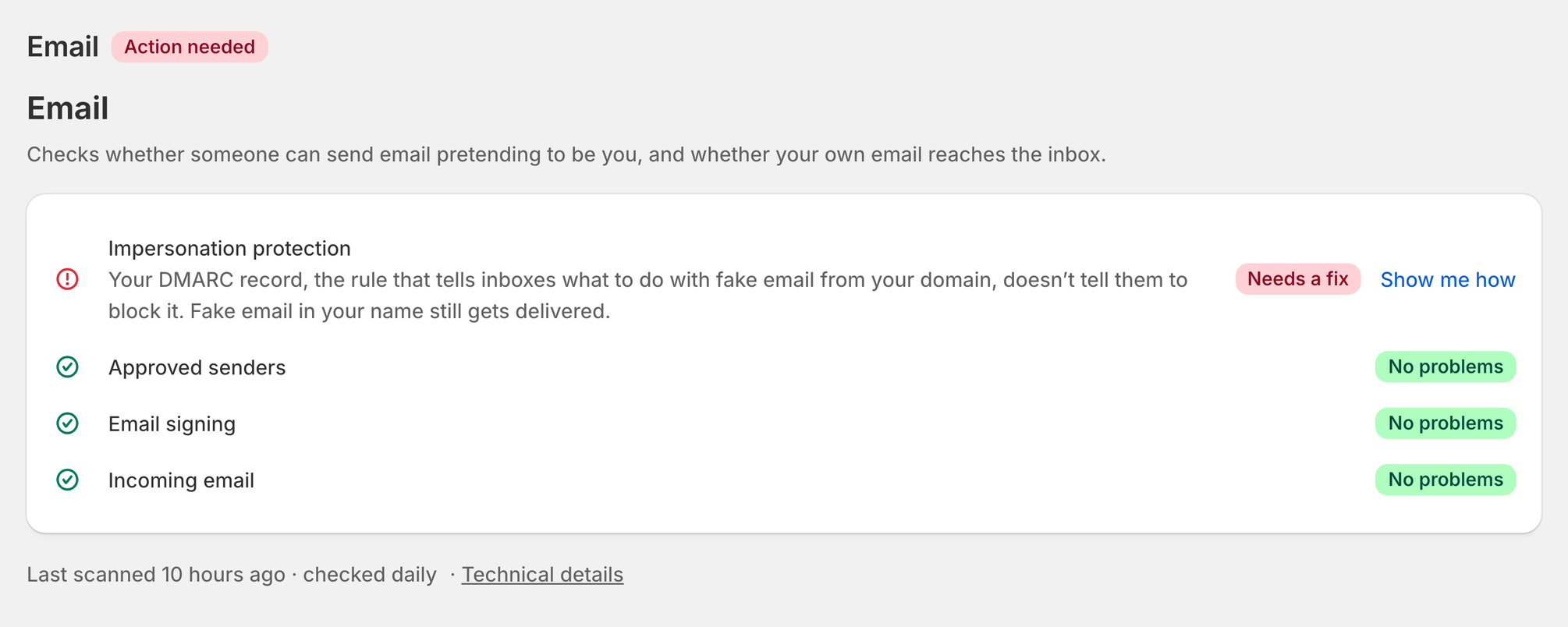
Each row is one check. Rows with a problem come first, with a short sentence that says what is wrong. Rows with no problems show a single line.
The checks run on every scan: every week on Free, every day on Pro. See the Recon app listing to compare plans.
What each check means
Your domain carries a few short text records in its DNS, the settings that tell the internet where your website and email live. Recon reads these records.
| Row | What it checks | States you can see |
|---|---|---|
| Approved senders | Your SPF record, a list of the services allowed to send email as you, such as Shopify, Google or Klaviyo. | Listed, Not set up, or "{service} missing" when your own email host is not on the list. |
| Email signing | DKIM, a signature your email service adds to each email to prove nobody changed it on the way. | Signed, or Not found. |
| Impersonation protection | Your DMARC record, the rule that tells inboxes what to do with fake email from your domain. | Blocked, or Anyone can send. |
| Incoming email | Your MX records, which tell other mail servers where to deliver email for you, such as customer replies. | Published, or Missing. |
| Blocked from sending email | Only for a domain that sends no email at all. Two short records stop anyone sending email in its name. | Blocked, or Not blocked. |
| Encrypted delivery | Optional. MTA-STS, a rule that makes other mail servers encrypt email sent to you. | Shown only under Technical details. |
Email signing shows Not found when Recon could not find a signature under the names email services commonly use. That is not proof your email is unsigned. If your email host says signing is on, you can ignore it. This is why it is never red.
What the badges mean
- No problems: the check passed.
- Worth a look: something could be better, but nothing is broken.
- Needs a fix: fix this first.
- Checking your fix: you said you made the change, and Recon has not confirmed it yet.
To see the raw records Recon found, click Technical details below the list.
Fix a check
- In Recon, open Email.
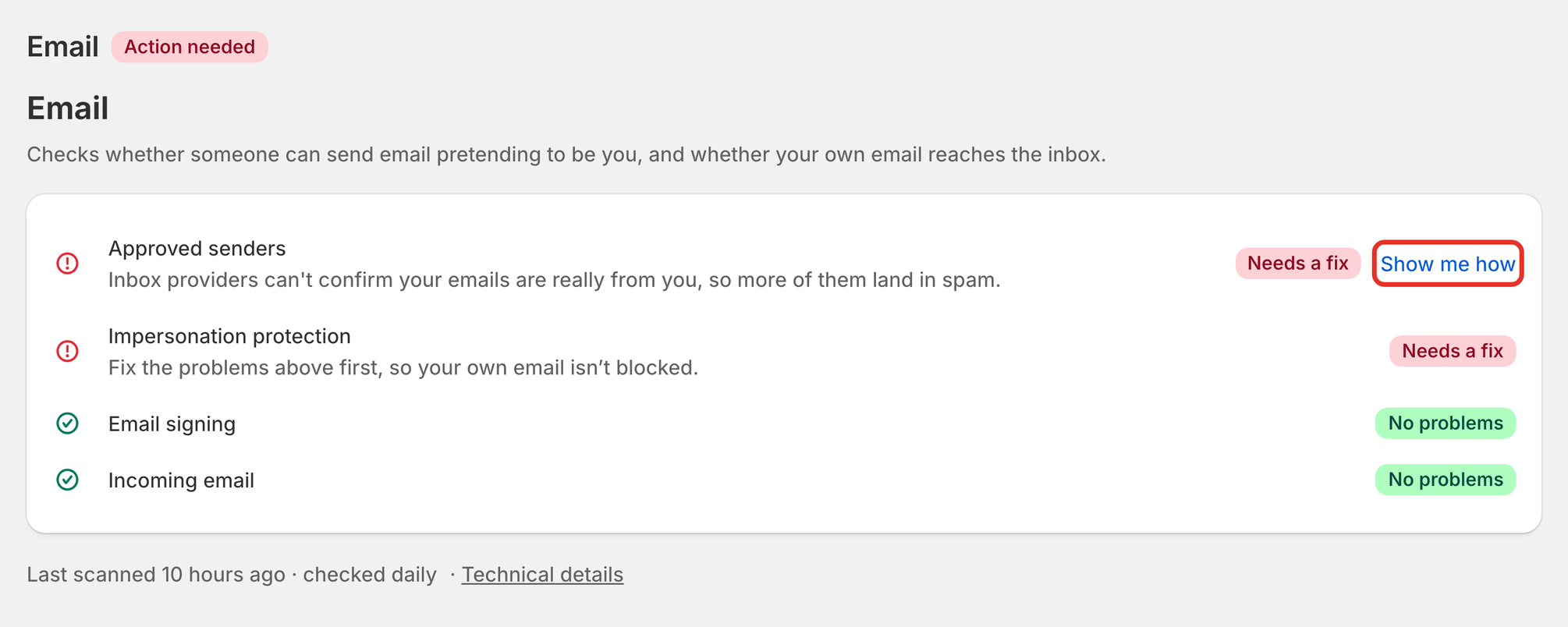
- On the row with a problem, click Show me how.
- A window opens with two steps. In Step 1, Recon shows the record to add or the setting to change. Click Copy record.
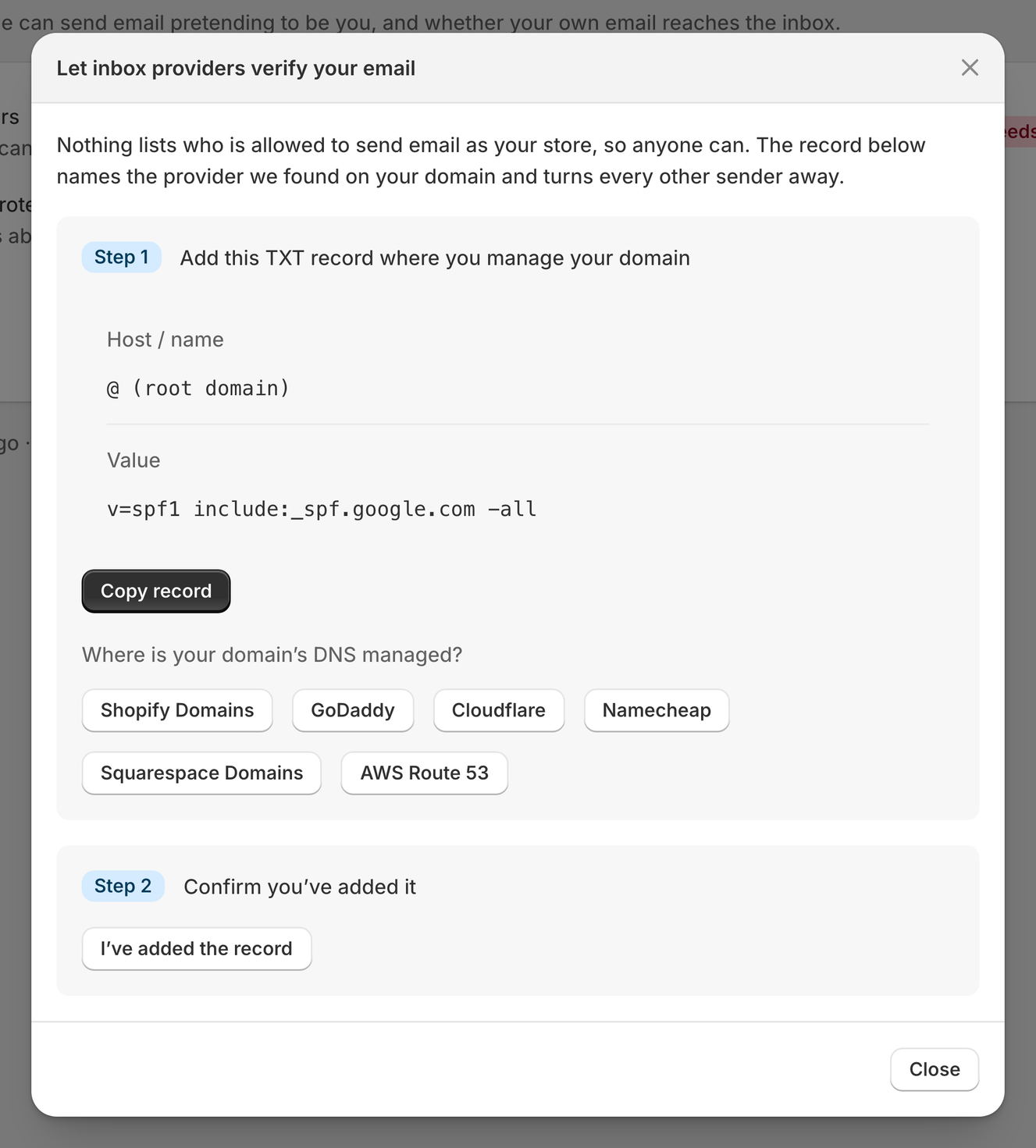
- Open the place where you manage your domain’s DNS. If Recon knows your provider, click Copy record and open {provider}. Otherwise, pick your provider from the list, such as Shopify Domains, GoDaddy or Cloudflare.
- Add or edit the record there, and save it.
- Back in Recon, click the Step 2 button, such as I’ve added it or I’ve updated it.
For Approved senders, Email signing, Impersonation protection and Blocked from sending email, Recon checks your DNS as soon as you click. You see one of two messages:
- "Confirmed. Recon sees your change."
- "Saved. Recon doesn’t see the change yet." DNS changes can take a few hours to spread. The next scan checks again.
For Incoming email, Recon checks on the next scan.
Some fixes happen in your email service, not in DNS. For Email signing, the window links to your email host, such as Google Workspace. You turn signing on there and add the records it gives you.
Why Impersonation protection waits
If Approved senders, Email signing or Incoming email has a problem, the Impersonation protection row has no Show me how link. It says: "Fix the problems above first, so your own email isn’t blocked."
This order protects you. DMARC tells inboxes to reject or junk email that fails the other checks. Turned on too early, it can send your own order confirmations to spam. Fix the rows above it, and the link appears.
If your store only has a myshopify.com address
The Email page shows Connect your own domain first. The records for a myshopify.com address belong to Shopify, so you cannot change them. Click Connect a domain to add your own domain in Shopify. Recon checks it on the next scan.
Related articles
- Set up DMARC for your Shopify store: the step-by-step for the most important email fix.
- Alerts and summary emails: how Recon tells you when a check starts failing.
- Recon Free and Pro plans: how often each plan checks.